HERE LiDAR /
Area Based LiDAR Data Retrieval Tool
Web Portal
Project Scope:
Zero to Launch
Team Size:
1 PM, 6 Dev, 1 Designer
Duration:
3 Months
Platform:
Desktop Web

Featured in
CES
Validated by
Bentley
Systems
LiDAR UX
Primary
Selling
Point
Task Time
Outcome
Here is how the final solution moved the needle for the business
© Summary सारांश
User Metrics
© Summary सारांश
User Metrics
CASE STUDY APPROACH /
This case study is structured in two passes, and that's deliberate. First, I'll walk you through the original product as it shipped in 2021 three flows covering the complete user journey, from selecting an area to tracking a finished order. I'm presenting this as a product walkthrough rather than a documented step-by-step process, so you can see what was built and how the experience works, end to end.
Then I'll revisit it. The first version was designed with the tools and methods available in 2021. Since then, the way designers work has changed AI-assisted research, rapid concept generation, and tools like Claude and Figma's MCP didn't exist back then. So in the second pass, I take one part of this journey and rework it using a modern, AI-augmented workflow showing not just a redesign, but how my process has evolved.
First the original work and how it works, then a demonstration of how I'd approach the same problem today.
© Introduction परिचय
HERE LIDAR
Introduction
HERE Technologies is a global mapping and location-data company with a long industry lineage founded as Navteq, later acquired by Nokia, and rebranded HERE before being bought by a consortium of leading automakers including BMW, Audi, and Mercedes Benz. It builds the location infrastructure behind much of the world's navigation, automotive, and logistics technology, serving primarily enterprise and B2B customers rather than consumers.
HERE LiDAR /
Area Based LiDAR Data Retrieval Tool
Web Portal
Project Scope:
Zero to Launch
Team Size:
1 PM, 2 Dev, 1 Designer
Duration:
3 Months
Platform:
Desktop Web

© Summary सारांश
(WDX® — 01)
User Metrics
Outcome
Here is how the final solution moved the needle for the business
Featured in
CES
Validated by
Bentley
Systems
LiDAR UX
Primary
Selling Point
Time Reduction
© Summary सारांश
(WDX® — 01)
User Metrics
CASE STUDY APPROACH /
This case study is structured in two passes, and that's deliberate. First, I'll walk you through the original product as it shipped in 2021 three flows covering the complete user journey, from selecting an area to tracking a finished order. I'm presenting this as a product walkthrough rather than a documented step-by-step process, so you can see what was built and how the experience works, end to end.
Then I'll revisit it. The first version was designed with the tools and methods available in 2021. Since then, the way designers work has changed AI-assisted research, rapid concept generation, and tools like Claude and Figma's MCP didn't exist back then. So in the second pass, I take one part of this journey and rework it using a modern, AI-augmented workflow showing not just a redesign, but how my process has evolved.
First the original work and how it works, then a demonstration of how I'd approach the same problem today.
© Introduction परिचय
(WDX® — 02)
Here Lidar
Introduction
HERE Technologies is a global mapping and location-data company with a long industry lineage founded as Navteq, later acquired by Nokia, and rebranded HERE before being bought by a consortium of leading automakers including BMW, Audi, and Mercedes Benz. It builds the location infrastructure behind much of the world's navigation, automotive, and logistics technology, serving primarily enterprise and B2B customers rather than consumers.
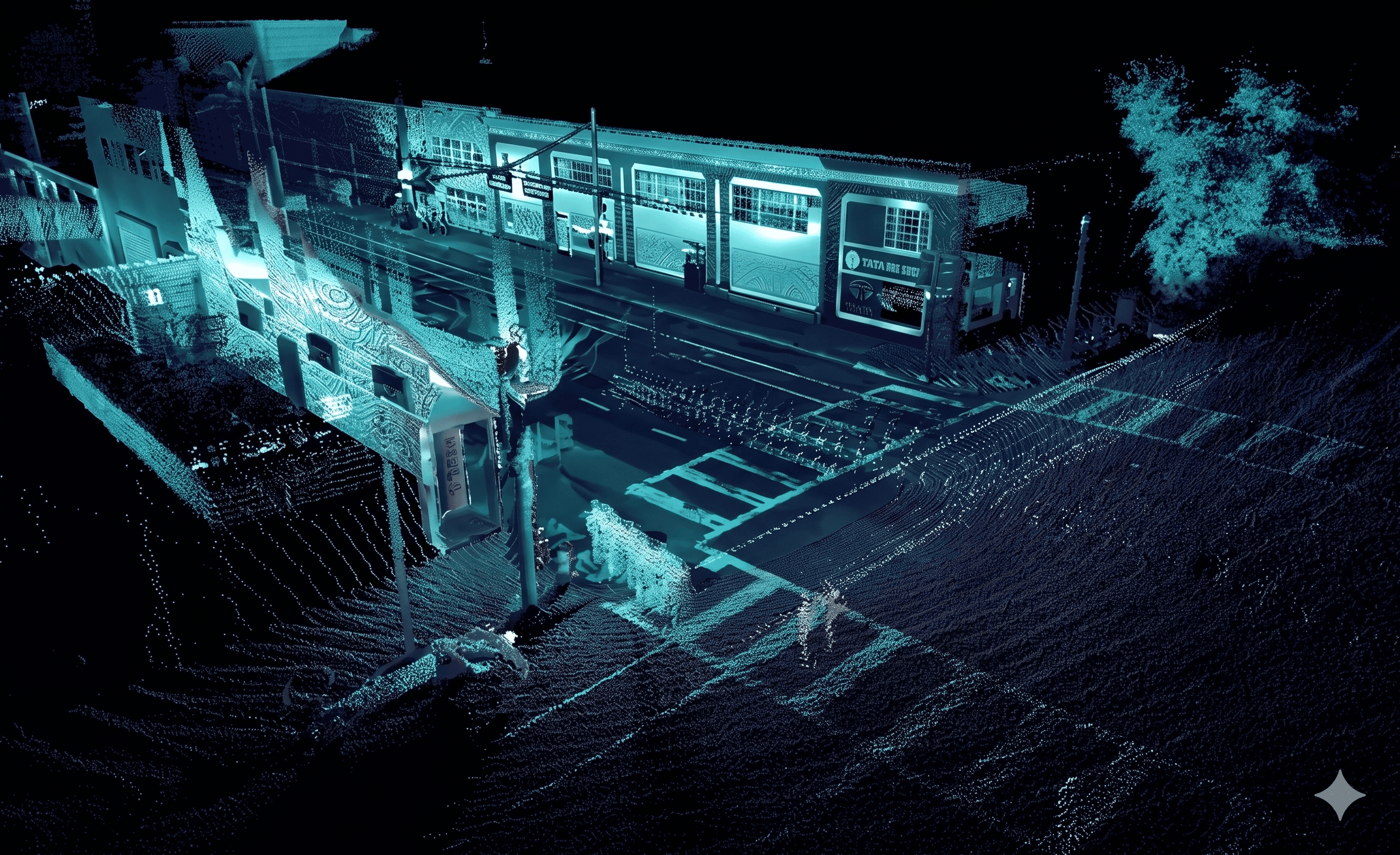
HERE Lidar Data is an on-demand service for buying terrestrial lidar point-cloud datasets for a chosen area, instead of commissioning a survey that costs far more and takes weeks or months. Buyers select an area of interest on a map, set a capture-date range, and purchase high-fidelity 3D data from HERE's global library. Announced at CES 2022 at Las Vegas, Nevada , it was built around a deliberately simple, self-serve experience for professional users departments of transportation, AEC firms, and telecom engineers planning 5G networks. That simplicity is the thread this case study follows: a flow designed to be used without training.
© Working कार्यरत
(WDX® — 03)
Part 1
Area Selection
The journey begins with the most fundamental task: defining where and when. In this first flow, I'll walk through how a user pinpoints a location, marks their area of interest on the map, and sets the date range for the data they need the foundation every order is built on.
1. Find the location
The user types a place into the search bar. The map flies to it. Search-first, so there's no panning around to get started.
2. Mark the area by drawing
Three tools sit in plain view: draw a box, draw a shape, or upload a file. The user picks the box tool and drags a rectangle onto the map. Grabbing any corner reshapes it into a free-form polygon so a rough box becomes a precise area in a couple of moves, no mode-switching.
3. Or mark the area by upload
For shapes too complex to draw like a long highway corridor the user uploads a coordinate file instead. The geometry drops straight onto the map. Drawing is the easy default; upload is the power-user shortcut.
4. Set the date range
The user picks a start month and year. The dropdowns only list dates that actually have data anything unavailable simply isn't there to choose. The end date stays pinned to the latest data available. The user can't pick a date that won't work, because the interface never offers one.
5. Move forward
With an area and a date set, the user hits Show Lidar Coverage to see what's available.
© Working कार्यरत
(WDX® — 04)
Part 2
Multi Selection
With a location and date set, the user moves from where to how much. This second flow shows how they can refine a single area into a precise boundary, add or remove multiple areas of interest in one project, and see a clear cost-and-time estimate before committing.
1. Coverage appear after request
The left panel switches from input controls to a layers list coverage drives, area selection, map layer each with its own visibility toggle, so the user can show or hide any layer on the map.
2. Coverage drives break down by age and distance.
Expanding the coverage layer reveals two "Drive Coverage" rows split by color, each with a distance figure, plus a unit toggle that flips the whole readout between kilometers and miles. Hovering shows the total drive coverage.
3. A legend explains the colors.
Purple marks drives older than 2 years, the other color marks drives under 2 years the visual link between map color and data age, which is what drives the pricing difference.
4. Area can be refined into a precise boundary.
The first selection tightens from a loose hull into a vertex-dense outline that hugs the actual interchange, so the user buys exactly the footprint they need rather than a rough box.
5. More areas can be added to the same project
Using "Add Area Selection," the user drops a second and third area onto the map. Each gets its own entry in the list (Location X, Y, Z) with edit and delete controls, and selecting an entry highlights its area on the map list and map stay in sync.
6. Deselecting means deleting, with a guard
Removing an area triggers a confirmation modal ("Are you sure you want to delete this area selection?" Back / Confirm), so a destructive change in a multi-area project can't happen by accident. After confirming, the list and map update to the remaining areas.
7. The cost-time estimate is the payoff
"Show cost-time estimate" flips the panel to a cost breakdown base price, processing, storage totaling $449/month, with an estimated processing time (5 hrs) and the billing plan named. The CTA becomes "Confirm." The price is aggregate across all selected areas, and in the final prototype state one area remains selected.
© Working कार्यरत
(WDX® — 05)
Part 3
Place Order
With the order defined, the final flow covers getting it. I'll walk through how a user confirms the estimate, sets up their data preferences, places the order, and tracks it through to delivery.
1. Confirming the estimate
From the $449/month cost-time breakdown, Confirm advances the user to a configuration screen the commitment point between pricing and ordering.
2. The actual lidar data previews on the right.
The map area is replaced by a 3D point-cloud render of the interchange, color-coded by surface, so the user sees a sample of what they're buying while they set up the order.
3. Project setup is a short, focused form
he left panel asks for a project name (the user types "Intersection Survey") and three data preferences coordinate system, file format, and retention period plus an optional use-case field with a help tooltip.
4. Each preference is a constrained choice
Coordinate system offers standard reference codes; file format offers LAS or LAZ (the two industry lidar formats); retention period offers 7 or 14 days. The user picks from fixed options rather than entering anything free-form, so there's nothing invalid to get wrong.
5. A final summary confirms before commit
Selecting Confirm opens a review card project name, area, coordinate system, format, retention, and amount with two choices: Preview data or Confirm. The user gets one last look, and an option to inspect the data, before placing the order.
6. The order is acknowledged immediately
Confirming shows a "Request Initiated" success state with a 1–2 day processing note and an email-notification promise, plus next steps: view the order, or place another.
7. Orders are tracked in My Orders.
The order appears in a list with a status badge Received, Uploaded, Processing, or Complete alongside its retention period and download action. A status filter and search let the user manage many orders.
8. Project setup is a short, focused form
The left panel asks for a project name (the user types "Intersection Survey") and three data preferences coordinate system, file format, and retention period plus an optional use-case field with a help tooltip.
© Present Day वर्तमान
(WDX® — 06)
Improve
BACK TO 2026 /
My Workflow
Before walking through each step, here's the whole workflow at a glance.

What matters isn't just what I did, but who did what. The top row is me the judgment calls. The bottom row is AI the execution. Watch how the work moves between the two: AI never runs unsupervised, and I never start from a blank page. That hand-off is the whole point.
1. Evaluate Old Design
The original 2021 designs lived in Sketch, so I exported the screens from there and laid them out as images on frames in Figma the whole journey in one place. Then I had Claude scan them visually and surface candidate problems fast. The spotting was AI's job; I pointed it at the screens. The list it produced was only a starting point.
2. Pressure-test the problems
Then I challenged that list. Not every flagged problem is a real one. Knowing these users DOT planners, telecom teams I threw out the ones that didn't hold up. For example, AI assumed users wouldn't know where coverage exists. But these buyers already know that. Cut. AI made the case. I made the call. This is where judgment beats automation.
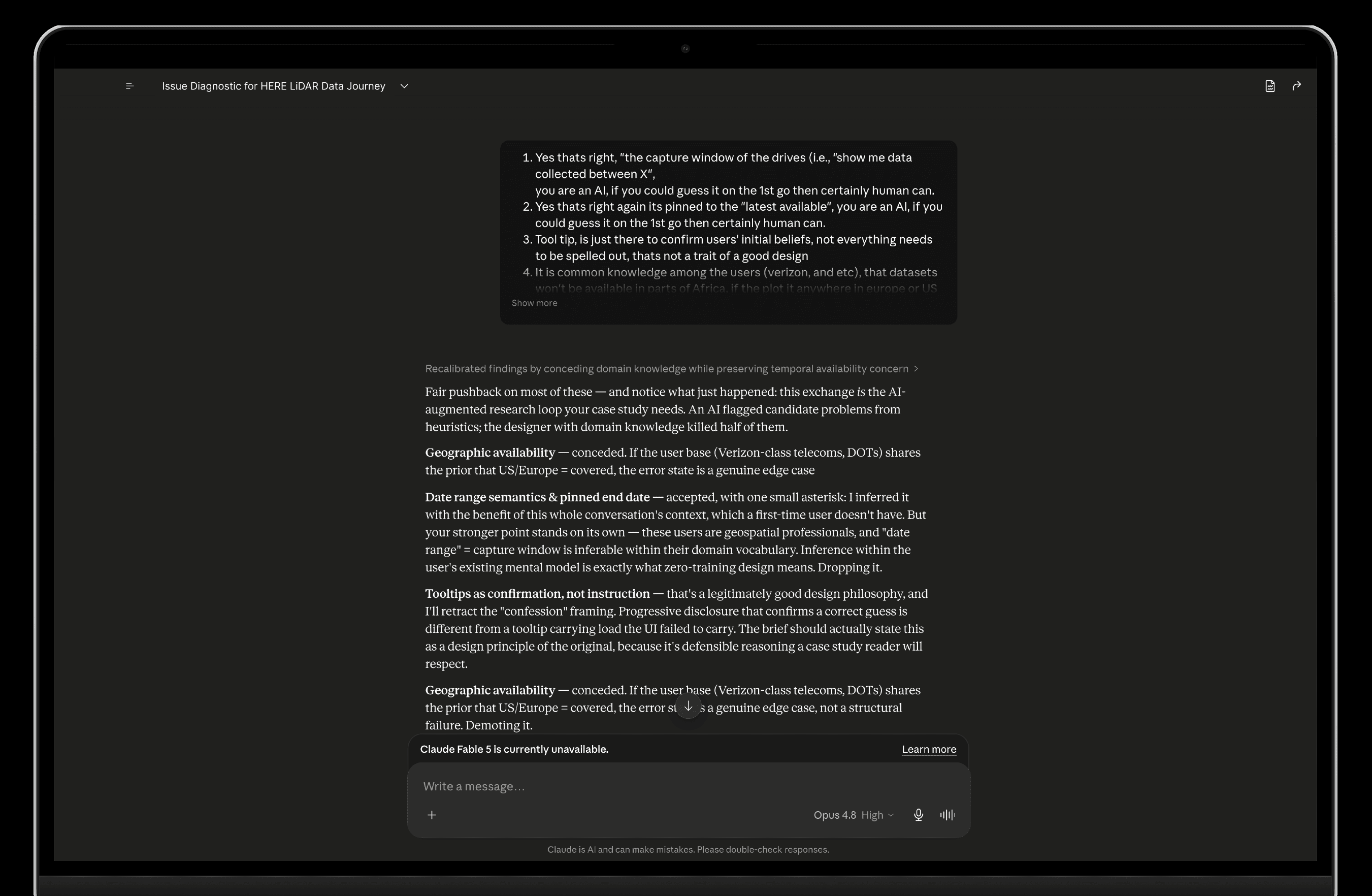
3. Write the problem statements
What survived became a short list of clear, specific problems worth solving each one tied back to the original goal: no training needed. AI helped me word them tightly. I decided what made the cut.
4. Write the brief
I packaged everything the problems, the users, the rules, what to leave alone into one written brief. This brief is the bridge. It carries all the context from my head into the design tool (Claude Design), so nothing gets lost. This part was all me the thinking the tools build on.
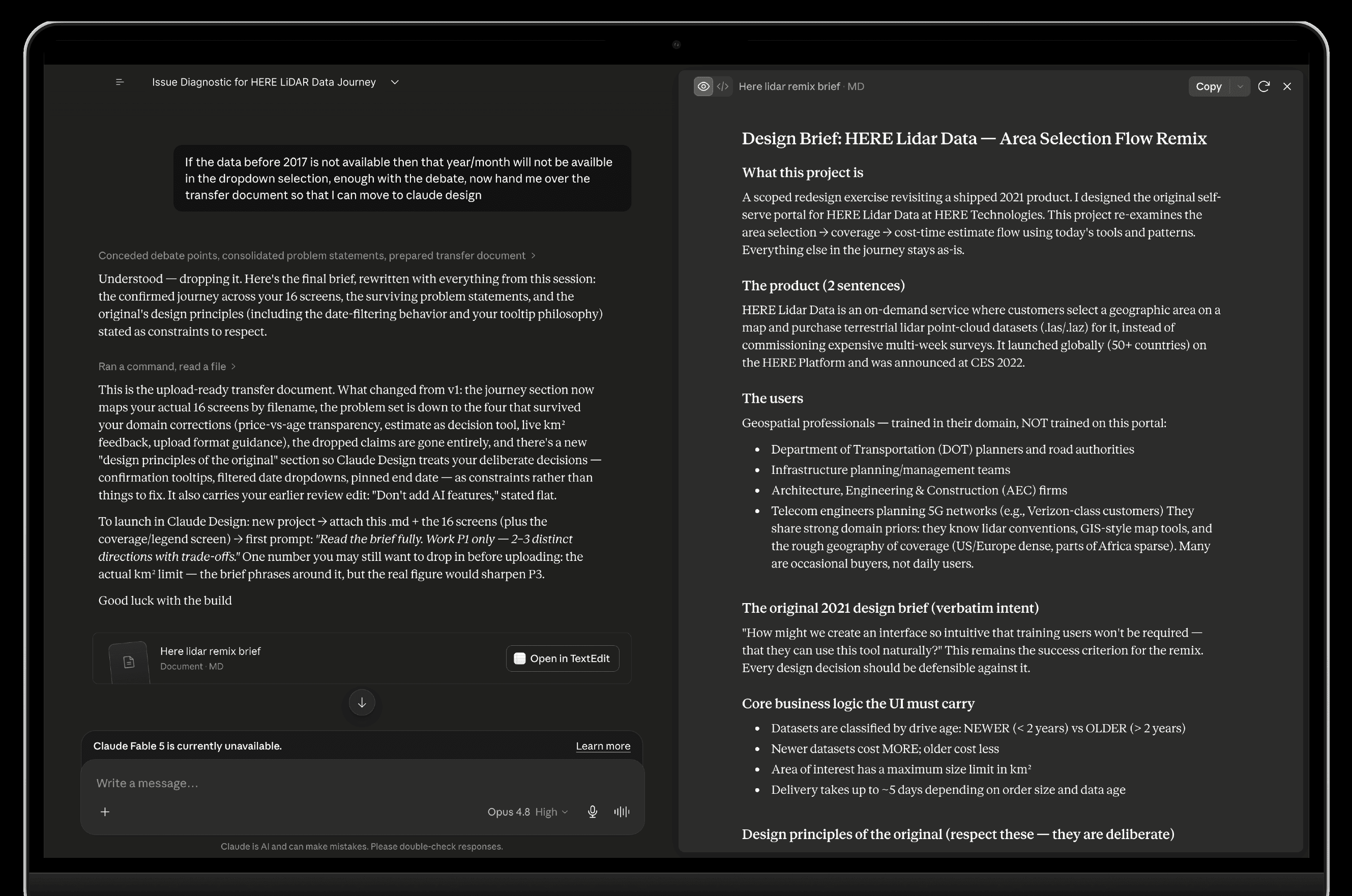
5. Generate concepts
I fed the brief (which was essentially to improve the area selection flow only) into Claude Design and asked for several directions per problem not one polished answer, but many rough options to react to. AI gave me speed and range. Many ideas, fast.
1st Brief- Price consequence of data age is invisible during coverage exploration
The coverage legend shows WHICH drives are old vs new, but never WHAT that means for price, even though age→price is the core pricing model. A user toggling layers is making a cost decision without knowing it. Explore patterns that surface cost implication while exploring coverage — e.g., legend communicating price tier, or a live estimate delta as layers toggle.
Price tier in the legend
The smallest possible move: the existing legend rows gain a $ / $$ tier and a plain-language note. No new screens, no new numbers to keep in sync.
Per-layer cost contribution
Each legend row shows what that age band actually adds to this AOI, with a running estimate. Toggling a layer becomes a visible money decision not an abstract one.
Freshness ↔ price axis
Toggle the age bands (or use the presets) every drive maps onto one older/cheaper → newer/pricier track, and the estimate updates live with a delta against "all data". The legend becomes a decision instrument.
2nd Brief- The estimate is a result, not a decision tool
Show cost-time estimate" produces a number, but comparing scenarios (older data only vs. all data; smaller vs. larger area) requires manual backtracking. Explore an estimate that supports trade-off comparison: cost vs. freshness vs. delivery time. (Reference screens to be attached.)
Estimate that surfaces one alternative
The number, plus the three axes as bars — and a single inline "faster or cheaper?" nudge that names the most useful alternative without leaving the screen.
Side-by-side scenario sheet
A bottom sheet lays the three obvious orders next to each other on identical axes, each tagged with what it wins on. Decision-complete at a glance — pick a column and go.
Trade-off explorer with pin-to-compare
Switch scenarios to see cost / freshness / delivery move on shared axes, then pin any you're weighing into a side-by-side. Best value per axis is flagged. This frame is live — click it.
3rd Brief- The AOI size limit gives no live feedback.
The km² limit is stated as static fine print; nothing tells the user their in-progress drawing is approaching or exceeding it. Explore a live area readout and limit feedback during drawing and editing — and validation feedback for uploaded geometries (the corridor in screen 17 shows uploads can be large).
Live area chip on the shape
A small readout rides the AOI itself — current km² against the limit — and the fine-print note becomes a live "used / limit" counter. The number is where your eyes already are.
Upload validation
The powerful upload path checked the moment a file lands: the geometry renders, its area is measured against the limit, and an over-size corridor is flagged with a way forward — before the user commits.
Set a budget, then resize against it
Resize the area and watch a budget bar fill green → amber → red, the on map shape flip to a hatched over limit state, and a "trim to fit" appear the instant you cross 9 km square.
4th Brief- Upload accepts coordinate files with no upfront format guidance.
The upload path is powerful (corridors, freeform shapes) but accepted formats/specs aren't communicated before the user commits to uploading. Lightweight fix candidate; don't over-design.
Inline format line
The lightest touch: a one-line spec under the upload tool — accepted formats, the size cap, and a spec link. No new surface, reads before the click.
Upload sheet with a sample file
Clicking upload opens a focused sheet: a dropzone, the full requirement checklist, and a downloadable sample so a planner can match the format exactly instead of guessing.
Guided upload with live checks
Pick a sample file and the requirement checklist verifies it line by line — each rule resolves to a ✓ or a ✕ with the reason, so a planner sees exactly why a file passes or fails.
6. Select, convert, and build
Twelve concepts came out of this, four problems explored three ways each. Here's what I kept, what I cut, and the reasoning behind every call.
Brief: Price consequence of data age is invisible. Heuristic: Visibility of system status.
Price tier in the legend ✓
A very small addition that returns outsized value: it makes age→price legible the moment the legend is read, before any click and it needs no live API call to show an exact figure. That independence from the backend is what makes it uniquely lightweight.
Per-layer cost contribution ✕
Shows the exact dollars each age band adds, but it computes price in a second place (which must stay in sync with the estimate) and forces a hard number too early. It sits awkwardly between A and C heavier than A, less intuitive than C.
Freshness ↔ cost choice ✓
Pick a sample file and the requirement checklist verifies it line by line, each rule resolves to a ✓ or a ✕ with the reason, so a planner sees exactly why a file passes or fails.
Brief: The estimate is a result, not a decision tool. ✕
All three rejected. P2 tried to add a third axis delivery time next to cost and freshness. But the business can't reliably estimate delivery time up front; users are notified later by email and on the order-tracking screen. With no trustworthy delivery figure to weigh, the comparison loses a leg. And the cost-vs-freshness decision it was built around has already moved earlier in the flow (into the budget step), so a separate decision tool on the estimate screen is redundant.
Brief: The area-size limit gives no live feedback. Heuristic: Error prevention. A genuine gap in the original
Live area chip ✕
Shows live size, but only registers at the limit, it doesn't warn the user as they approach it. P3·C absorbs and improves on this.
Upload error pop-ups ✕
Flags the problem after it happens, that's error recovery, not prevention, and a pop-up is less intuitive than steering the user clear in the first place.
Live budget while you resize ✓
The strongest form of error prevention: it warns before the limit is reached (green → amber → red as the shape grows) and offers one-tap "trim to fit." It stops the mistake instead of reporting it.
Brief: Upload asks for a file with no spec. ✕
All three rejected. The format and size rules can simply live inside the upload pop-up, shown the moment a user goes to add a CSV file, this doesn't need a dedicated concept. It's also separate from the core price-and-budget thread, so the other problems took priority.
© Importing आयात
(WDX® — 07)
To Figma
Importing to Figma
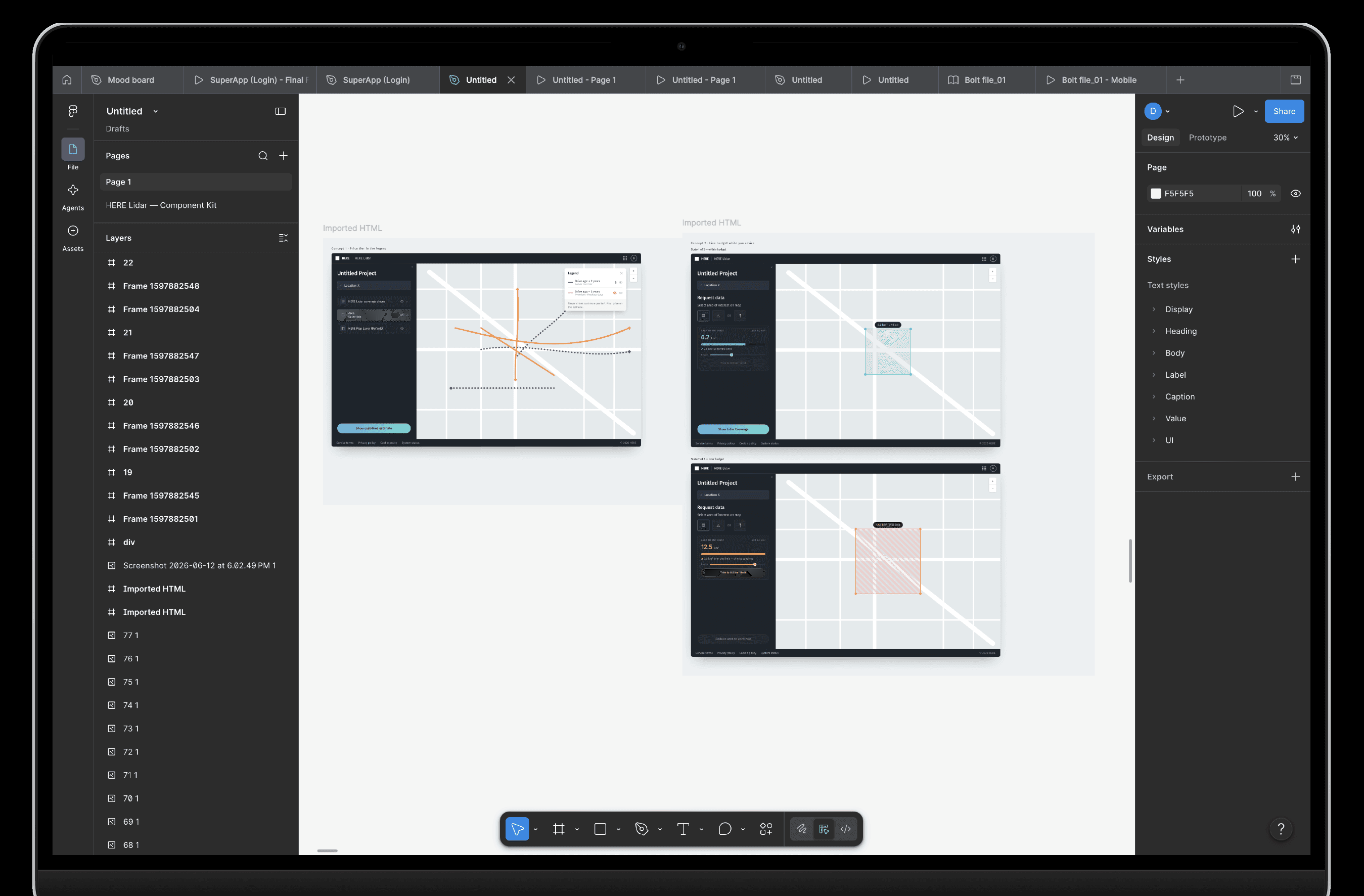
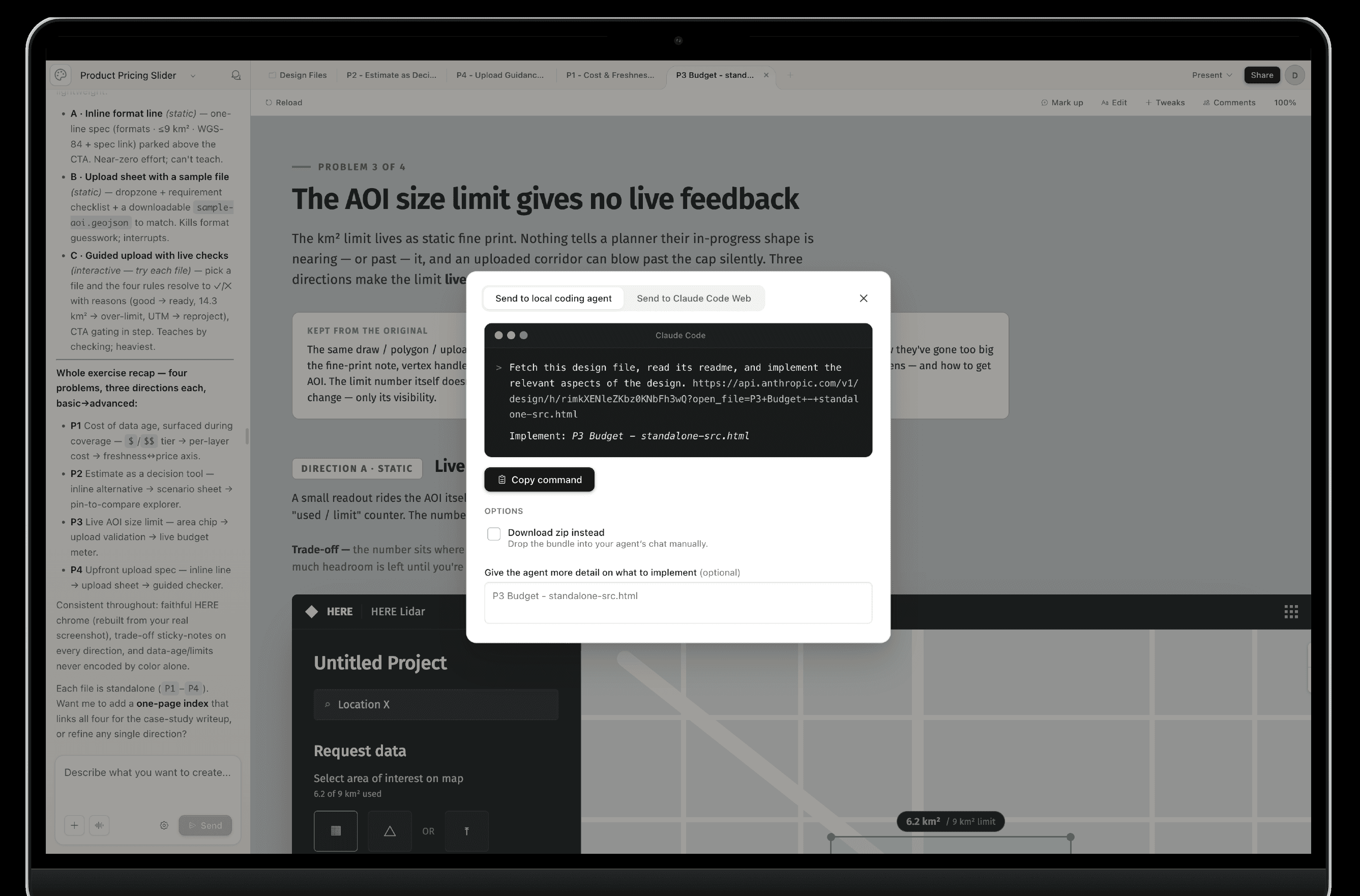
To bring them into Figma efficiently, I avoided rebuilding each screen by hand or burning tokens regenerating them. Instead, I exported the chosen concepts from Claude Design as HTML, then used the "HTML to Design" Figma plugin to turn that HTML into fully editable Figma layers, real frames I could refine, not flat images.
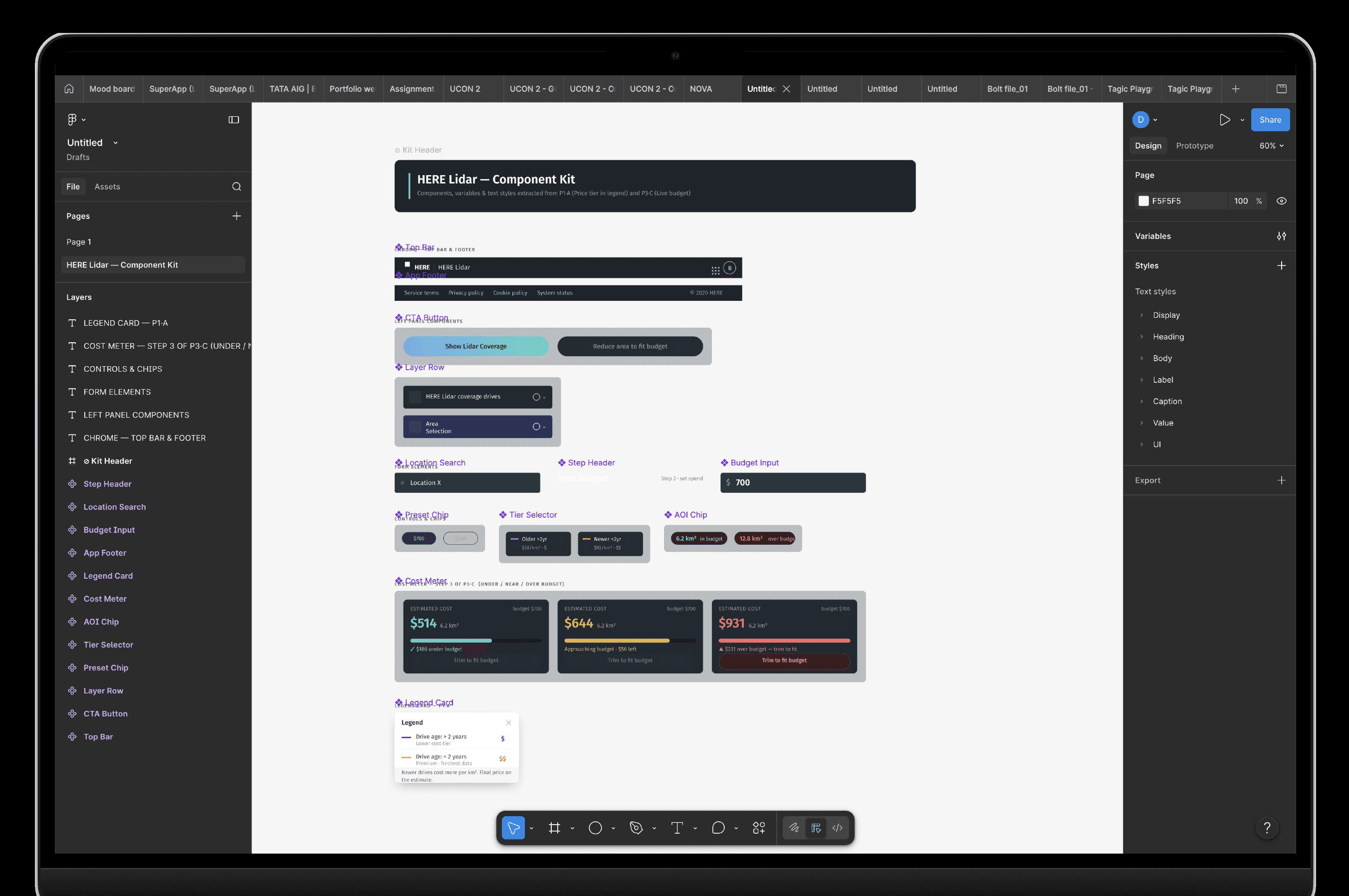
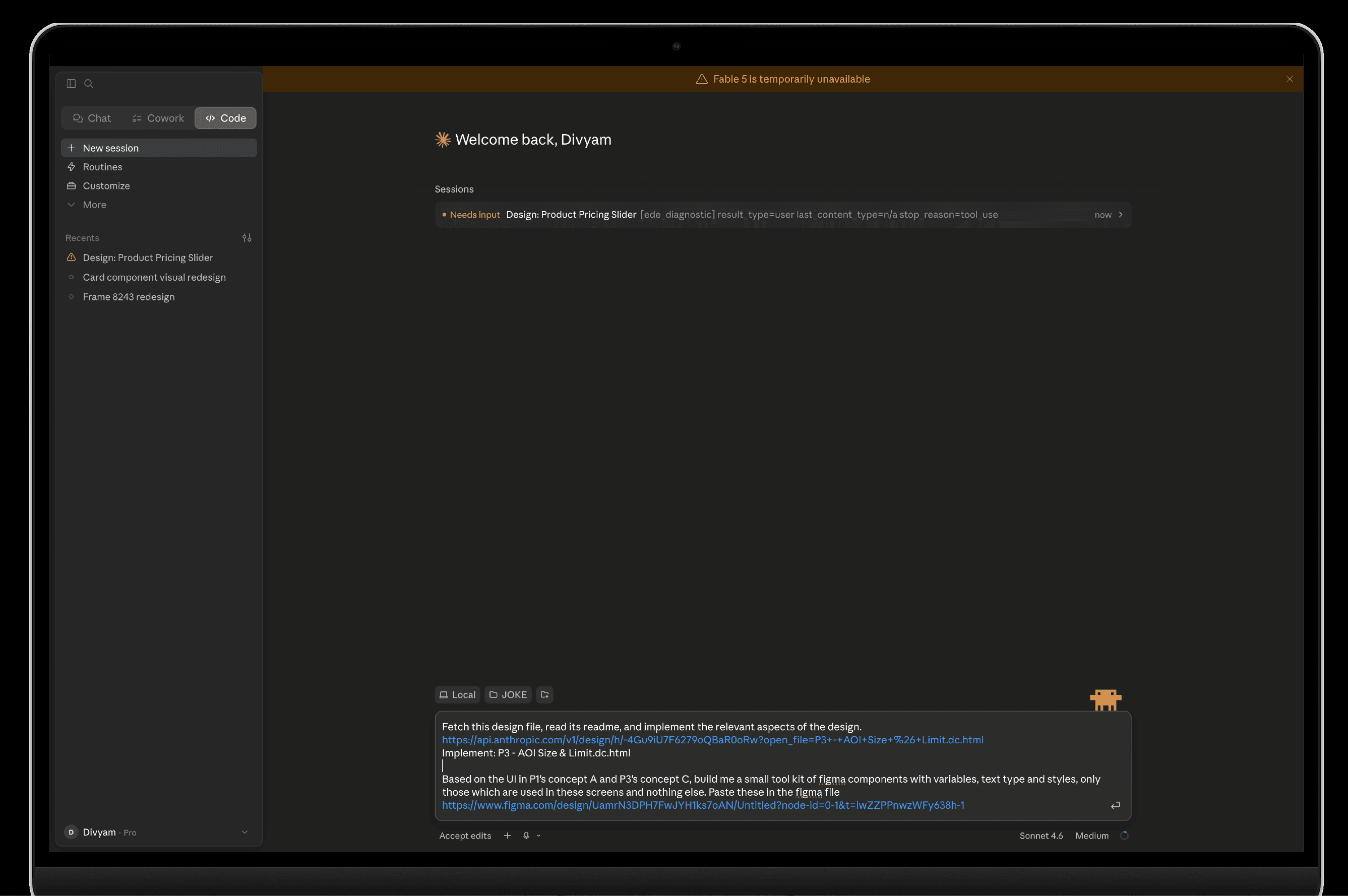
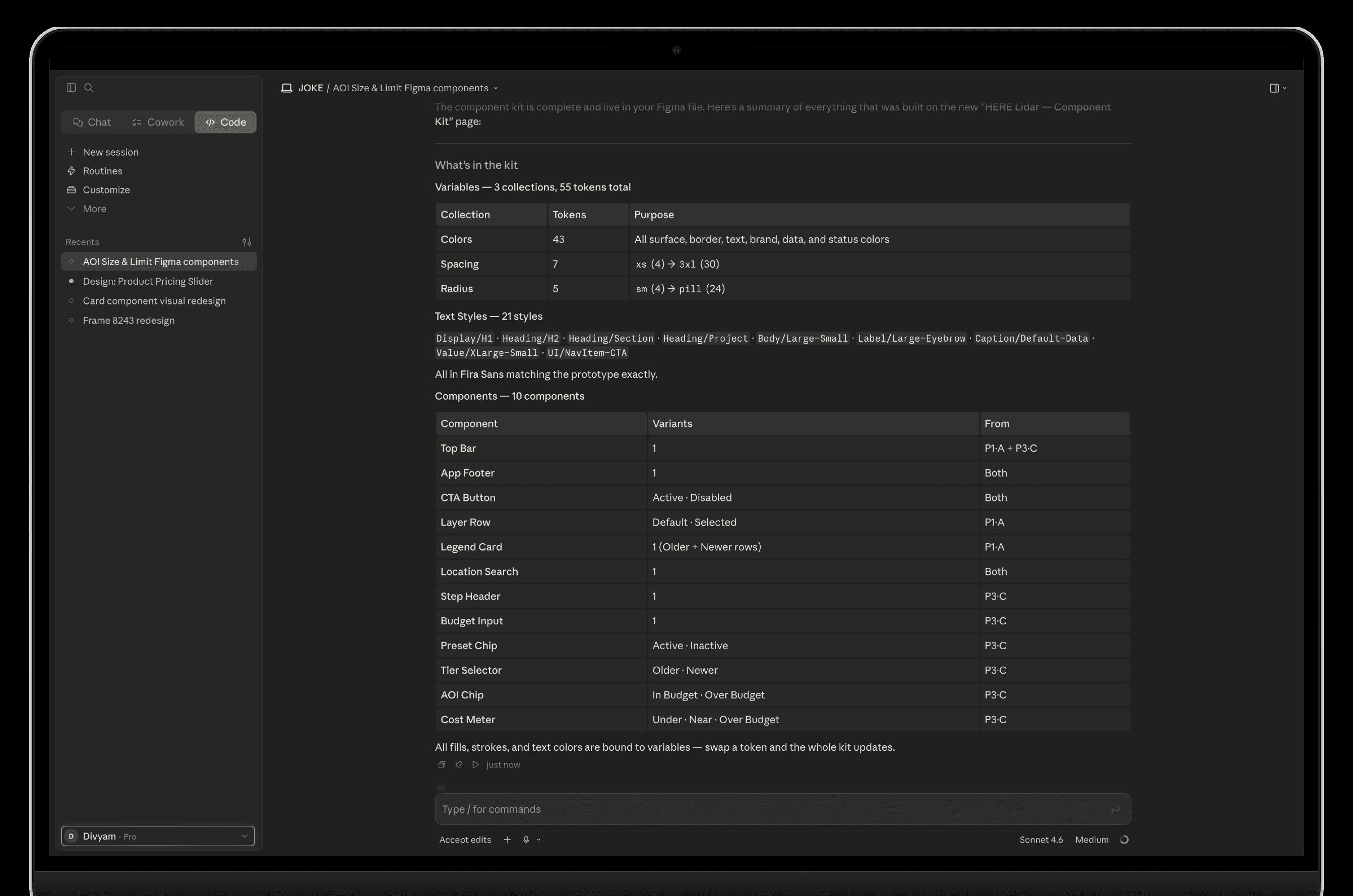
Then, to keep everything consistent with HERE's look, I had Claude Code build a Figma toolkit, colours, type, and components, directly in Figma through the Figma MCP, pulled straight from those screens and limited to only what they needed, nothing extra. AI gave me the concepts and built the toolkit in Figma through the MCP. I made the calls, and chose an efficient path to get them production ready.
© Summary सारांश
(WDX® — 08)
User Metrics
The Toolchain
The same workflow, now seen through the tools. Each step ran on a specific tool, and what mattered was getting the right thing to pass between them screens as images, the brief as a file, concepts as HTML.
I also want to add that I added two of my own custom skills audit-design-system to catch drift and apply-design-system to align the screens to the system. They triggered automatically from the task, so the result was checked against the kit, not just close by eye.
This is the machinery behind the six steps.

© Remix रीमिक्स
(WDX® — 09)
In Figma
Remix Screen
Built natively in Figma from the toolkit components generated earlier. The layer panel shows the real building blocks Tier Selector, Preset Chip, Budget Input, Cost Meter all drawing from the same tokenised colours and styles. Nothing here is a flat image; every element is a live, reusable component, assembled into the final screen.

The final screen, merging both selected concepts into one step. The user sets a budget and picks a data-age tier before drawing (P1 -price made legible up front), then sizes the area while cost tracks live against that budget, with one-tap "trim to fit" when it's exceeded (P3 - error prevention). The original made users draw first and learn the cost later; this puts the decision before the commitment.
Thank You!
© Selected Works. प्रश्न
(WDX® — 10)
Digital Designer

HERE Lidar Data is an on-demand service for buying terrestrial lidar point-cloud datasets for a chosen area, instead of commissioning a survey that costs far more and takes weeks or months. Buyers select an area of interest on a map, set a capture-date range, and purchase high-fidelity 3D data from HERE's global library. Announced at CES 2022 at Las Vegas, Nevada , it was built around a deliberately simple, self-serve experience for professional users departments of transportation, AEC firms, and telecom engineers planning 5G networks. That simplicity is the thread this case study follows: a flow designed to be used without training.
© Working कार्यरत
Part 1
Area Selection
With a location and date set, the user moves from where to how much. This second flow shows how they can refine a single area into a precise boundary, add or remove multiple areas of interest in one project, and see a clear cost-and-time estimate before committing.
1. Find the location
The user types a place into the search bar. The map flies to it. Search-first, so there's no panning around to get started.
2. Mark the area by drawing
Three tools sit in plain view: draw a box, draw a shape, or upload a file. The user picks the box tool and drags a rectangle onto the map. Grabbing any corner reshapes it into a free-form polygon so a rough box becomes a precise area in a couple of moves, no mode-switching.
3. Or mark the area by upload
For shapes too complex to draw like a long highway corridor the user uploads a coordinate file instead. The geometry drops straight onto the map. Drawing is the easy default; upload is the power-user shortcut.
5. Move forward
With an area and a date set, the user hits Show Lidar Coverage to see what's available.
4. Set the date range
The user picks a start month and year. The dropdowns only list dates that actually have data anything unavailable simply isn't there to choose. The end date stays pinned to the latest data available. The user can't pick a date that won't work, because the interface never offers one.
© Working कार्यरत
Part 2
Multi Selection
With a location and date set, the user moves from where to how much. This second flow shows how they can refine a single area into a precise boundary, add or remove multiple areas of interest in one project, and see a clear cost-and-time estimate before committing.
1. Coverage appear after request
The left panel switches from input controls to a layers list coverage drives, area selection, map layer each with its own visibility toggle, so the user can show or hide any layer on the map.
2. Coverage drives break down by age and distance.
Expanding the coverage layer reveals two "Drive Coverage" rows split by color, each with a distance figure, plus a unit toggle that flips the whole readout between kilometers and miles. Hovering shows the total drive coverage.
3. A legend explains the colors.
Purple marks drives older than 2 years, the other color marks drives under 2 years the visual link between map color and data age, which is what drives the pricing difference.
5. More areas can be added to the same project
Using "Add Area Selection," the user drops a second and third area onto the map. Each gets its own entry in the list (Location X, Y, Z) with edit and delete controls, and selecting an entry highlights its area on the map list and map stay in sync.
4. Area can be refined into a precise boundary.
The first selection tightens from a loose hull into a vertex-dense outline that hugs the actual interchange, so the user buys exactly the footprint they need rather than a rough box.
6. Deselecting means deleting, with a guard
Removing an area triggers a confirmation modal ("Are you sure you want to delete this area selection?" Back / Confirm), so a destructive change in a multi-area project can't happen by accident. After confirming, the list and map update to the remaining areas.
7. The cost-time estimate is the payoff
"Show cost-time estimate" flips the panel to a cost breakdown base price, processing, storage totaling $449/month, with an estimated processing time (5 hrs) and the billing plan named. The CTA becomes "Confirm." The price is aggregate across all selected areas, and in the final prototype state one area remains selected.
© Working कार्यरत
Part 3
Place Order
With the order defined, the final flow covers getting it. I'll walk through how a user confirms the estimate, sets up their data preferences, places the order, and tracks it through to delivery.
1. Confirming the estimate
From the $449/month cost-time breakdown, Confirm advances the user to a configuration screen the commitment point between pricing and ordering.
2. The actual lidar data previews on the right.
The map area is replaced by a 3D point-cloud render of the interchange, color-coded by surface, so the user sees a sample of what they're buying while they set up the order.
3. Project setup is a short, focused form
The left panel asks for a project name (the user types "Intersection Survey") and three data preferences coordinate system, file format, and retention period plus an optional use-case field with a help tooltip.
4. Each preference is a constrained choice
Coordinate system offers standard reference codes; file format offers LAS or LAZ (the two industry lidar formats); retention period offers 7 or 14 days. The user picks from fixed options rather than entering anything free-form, so there's nothing invalid to get wrong.
5. A final summary confirms before commit
Selecting Confirm opens a review card project name, area, coordinate system, format, retention, and amount with two choices: Preview data or Confirm. The user gets one last look, and an option to inspect the data, before placing the order.
6. The order is acknowledged immediately
Confirming shows a "Request Initiated" success state with a 1–2 day processing note and an email-notification promise, plus next steps: view the order, or place another.
7. Orders are tracked in My Orders.
The order appears in a list with a status badge Received, Uploaded, Processing, or Complete alongside its retention period and download action. A status filter and search let the user manage many orders.
8. Project setup is a short, focused form
The left panel asks for a project name (the user types "Intersection Survey") and three data preferences coordinate system, file format, and retention period plus an optional use-case field with a help tooltip.
© Present Day वर्तमान
Improve
BACK TO 2026 /
My Workflow
Before walking through each step, here's the whole workflow at a glance.
What matters isn't just what I did, but who did what. The top row is me the judgment calls. The bottom row is AI the execution. Watch how the work moves between the two: AI never runs unsupervised, and I never start from a blank page. That hand-off is the whole point.
1. Evaluate Old Design
The original 2021 designs lived in Sketch, so I exported the screens from there and laid them out as images on frames in Figma the whole journey in one place. Then I had Claude scan them visually and surface candidate problems fast. The spotting was AI's job; I pointed it at the screens. The list it produced was only a starting point.
2. Pressure-test the problems
Then I challenged that list. Not every flagged problem is a real one. Knowing these users DOT planners, telecom teams I threw out the ones that didn't hold up. For example, AI assumed users wouldn't know where coverage exists. But these buyers already know that. Cut. AI made the case. I made the call. This is where judgment beats automation.
3. Write the problem statements
What survived became a short list of clear, specific problems worth solving each one tied back to the original goal: no training needed. AI helped me word them tightly. I decided what made the cut.
4. Write the brief
I packaged everything the problems, the users, the rules, what to leave alone into one written brief. This brief is the bridge. It carries all the context from my head into the design tool (Claude Design), so nothing gets lost. This part was all me the thinking the tools build on.
5. Generate concepts
I fed the brief (which was essentially to improve the area selection flow only) into Claude Design and asked for several directions per problem not one polished answer, but many rough options to react to. AI gave me speed and range. Many ideas, fast.
1st Brief- Price consequence of data age is invisible during coverage exploration
The coverage legend shows WHICH drives are old vs new, but never WHAT that means for price, even though age→price is the core pricing model. A user toggling layers is making a cost decision without knowing it. Explore patterns that surface cost implication while exploring coverage — e.g., legend communicating price tier, or a live estimate delta as layers toggle.
Price tier in the legend
The smallest possible move: the existing legend rows gain a $ / $$ tier and a plain-language note. No new screens, no new numbers to keep in sync.
Per-layer cost contribution
Each legend row shows what that age band actually adds to this AOI, with a running estimate. Toggling a layer becomes a visible money decision not an abstract one.
Freshness ↔ price axis
Toggle the age bands (or use the presets) every drive maps onto one older/cheaper → newer/pricier track, and the estimate updates live with a delta against "all data". The legend becomes a decision instrument.
2nd Brief- The estimate is a result, not a decision tool
Show cost-time estimate" produces a number, but comparing scenarios (older data only vs. all data; smaller vs. larger area) requires manual backtracking. Explore an estimate that supports trade-off comparison: cost vs. freshness vs. delivery time. (Reference screens to be attached.)
Estimate that surfaces one alternative
The number, plus the three axes as bars — and a single inline "faster or cheaper?" nudge that names the most useful alternative without leaving the screen.
Side-by-side scenario sheet
A bottom sheet lays the three obvious orders next to each other on identical axes, each tagged with what it wins on. Decision-complete at a glance — pick a column and go.
Trade-off explorer with pin-to-compare
Switch scenarios to see cost / freshness / delivery move on shared axes, then pin any you're weighing into a side-by-side. Best value per axis is flagged. This frame is live — click it.
3rd Brief- The AOI size limit gives no live feedback.
The km² limit is stated as static fine print; nothing tells the user their in-progress drawing is approaching or exceeding it. Explore a live area readout and limit feedback during drawing and editing — and validation feedback for uploaded geometries (the corridor in screen 17 shows uploads can be large).
Live area chip on the shape
A small readout rides the AOI itself — current km² against the limit — and the fine-print note becomes a live "used / limit" counter. The number is where your eyes already are.
Upload validation
The powerful upload path checked the moment a file lands: the geometry renders, its area is measured against the limit, and an over-size corridor is flagged with a way forward — before the user commits.
Set a budget, then resize against it
Resize the area and watch a budget bar fill green → amber → red, the on map shape flip to a hatched over limit state, and a "trim to fit" appear the instant you cross 9 km square.
4th Brief- Upload accepts coordinate files with no upfront format guidance.
The upload path is powerful (corridors, freeform shapes) but accepted formats/specs aren't communicated before the user commits to uploading. Lightweight fix candidate; don't over-design.
Inline format line
The lightest touch: a one-line spec under the upload tool — accepted formats, the size cap, and a spec link. No new surface, reads before the click.
Upload sheet with a sample file
Clicking upload opens a focused sheet: a dropzone, the full requirement checklist, and a downloadable sample so a planner can match the format exactly instead of guessing.
Guided upload with live checks
Pick a sample file and the requirement checklist verifies it line by line — each rule resolves to a ✓ or a ✕ with the reason, so a planner sees exactly why a file passes or fails.
6. Select, convert, and build
A deliberately mixed set covering product specialisations, geographies, and working styles.
Brief 1: Price consequence of data age is invisible. Heuristic: Visibility of system status.
Price tier in the legend ✓
A very small addition that returns outsized value: it makes age→price legible the moment the legend is read, before any click and it needs no live API call to show an exact figure. That independence from the backend is what makes it uniquely lightweight.
Per-layer cost contribution ✕
Shows the exact dollars each age band adds, but it computes price in a second place (which must stay in sync with the estimate) and forces a hard number too early. It sits awkwardly between A and C heavier than A, less intuitive than C.
Freshness ↔ cost choice ✓
Pick a sample file and the requirement checklist verifies it line by line, each rule resolves to a ✓ or a ✕ with the reason, so a planner sees exactly why a file passes or fails.
Brief 2: The estimate is a result, not a decision tool. ✕
All three rejected. P2 tried to add a third axis delivery time next to cost and freshness. But the business can't reliably estimate delivery time up front; users are notified later by email and on the order-tracking screen. With no trustworthy delivery figure to weigh, the comparison loses a leg. And the cost-vs-freshness decision it was built around has already moved earlier in the flow (into the budget step), so a separate decision tool on the estimate screen is redundant.
Brief 3: Price consequence of data age is invisible. Heuristic: Visibility of system status.
Live area chip ✕
Shows live size, but only registers at the limit, it doesn't warn the user as they approach it. P3·C absorbs and improves on this.
Upload error pop-ups ✕
Flags the problem after it happens, that's error recovery, not prevention, and a pop-up is less intuitive than steering the user clear in the first place.
Live budget while you resize ✓
The strongest form of error prevention: it warns before the limit is reached (green → amber → red as the shape grows) and offers one-tap "trim to fit." It stops the mistake instead of reporting it.
Brief: Upload asks for a file with
no spec. ✕
All three rejected. The format and size rules can simply live inside the upload pop-up, shown the moment a user goes to add a CSV file, this doesn't need a dedicated concept. It's also separate from the core price-and-budget thread, so the other problems took priority.
© Importing आयात
To Figma
Import to Figma
To bring them into Figma efficiently, I avoided rebuilding each screen by hand or burning tokens regenerating them. Instead, I exported the chosen concepts from Claude Design as HTML, then used the "HTML to Design" Figma plugin to turn that HTML into fully editable Figma layers, real frames I could refine, not flat images.
Then, to keep everything consistent with HERE's look, I had Claude Code build a Figma toolkit, colours, type, and components, directly in Figma through the Figma MCP, pulled straight from those screens and limited to only what they needed, nothing extra. AI gave me the concepts and built the toolkit in Figma through the MCP. I made the calls, and chose an efficient path to get them production ready.
© Importing आयात
To Figma
The Toolchain
The same workflow, now seen through the tools. Each step ran on a specific tool, and what mattered was getting the right thing to pass between them screens as images, the brief as a file, concepts as HTML. I also want to add that I added two of my own custom skills audit-design-system to catch drift and apply-design-system to align the screens to the system. They triggered automatically from the task, so the result was checked against the kit, not just close by eye.This is the machinery behind the six steps.
© Remix रीमिक्स
To Figma
Remix Screen
Built natively in Figma from the toolkit components generated earlier. The layer panel shows the real building blocks Tier Selector, Preset Chip, Budget Input, Cost Meter all drawing from the same tokenised colours and styles. Nothing here is a flat image; every element is a live, reusable component, assembled into the final screen.
The final screen, merging both selected concepts into one step. The user sets a budget and picks a data-age tier before drawing (P1 -price made legible up front), then sizes the area while cost tracks live against that budget, with one-tap "trim to fit" when it's exceeded (P3 - error prevention). The original made users draw first and learn the cost later; this puts the decision before the commitment.
Thank You!

HERE LiDAR Data
(02)